Exchanging documents with another Gestix company (jEDI)
Exchanging documents with another Gestix company (jEDI): new in Gestix 7.2.12
Availability
Exchanging documents with another Gestix company (jEDI): available since Gestix 7.2.12. Related licence features: Electronic Purchase Order to Supplier, Accept Electronic Purchase Orders.
Features vary with the edition and configuration you subscribe to: check your licence for the features it includes. Why can't I see a feature?
With jEDI, a company that uses Gestix sends a document straight into the Gestix of a customer or supplier that also uses Gestix. Nobody retypes it: the document arrives at the partner as a draft, which an operator checks and saves.
This page is for administrators who set up a partner, and for the staff who send documents and validate the ones received.
What is sent and what arrives
| You issue | Your partner receives, as a draft |
|---|---|
| Sales invoice, invoice-receipt or sale receipt | Supplier invoice of the same type |
| Credit memo | Credit memo issued by the supplier ("your credit") |
| Purchase order to a supplier | Sales order from a customer |
From the purchases side, only purchase orders are sent.
Both companies must run Gestix ERP 7.2. The company that sends needs the licence feature Electronic Purchase Order to Supplier (Json-EDI); the company that receives needs Accept Electronic Purchase Orders. Each document stays the legal document of the company that issued it: the partner's copy is a record of a purchase or an order, as with a document received on paper or as a PDF.
Before you start
- An API Token from the partner. Each company that receives generates an API Token in Admin › Webshop API for a user who may create purchases and orders, and gives it to its partner. If that user's password is changed later, the token stops working: generate a new one and give it to the partner again.
- Validated document series on both sides. The series of the document you send, and the partner's series that receives it, must be validated by the Tax Authority for the document's date. Otherwise the document is refused.
Set up a partner
Each company names the other with the same rule, in the partner's customer or supplier record:
EDI Identifier = partner's Gestix ID/partner's series that receives my documents
The partner recognises you by your Gestix ID (the part before the /) and your VAT ID. The series after the / is
where your documents arrive.
In the company that sends invoices
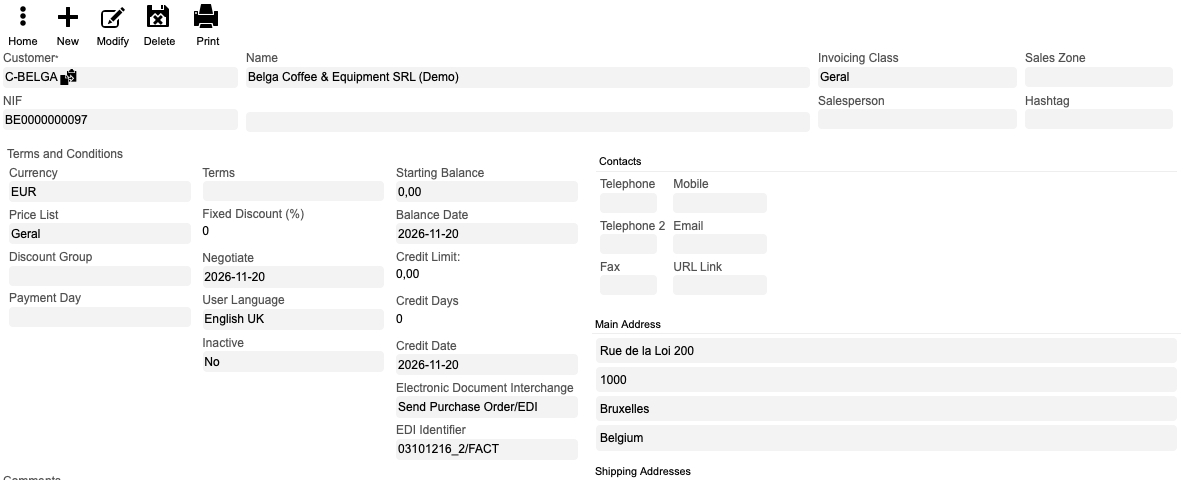
- Open the customer's record and select Modify.
- In Electronic Document Interchange, choose Send Purchase Order/EDI.
- In EDI Identifier, enter the customer's Gestix ID, a
/and the customer's supplier invoice series, for example03101052/FAT. - Check that the VAT ID is the customer's, then select Save.
-
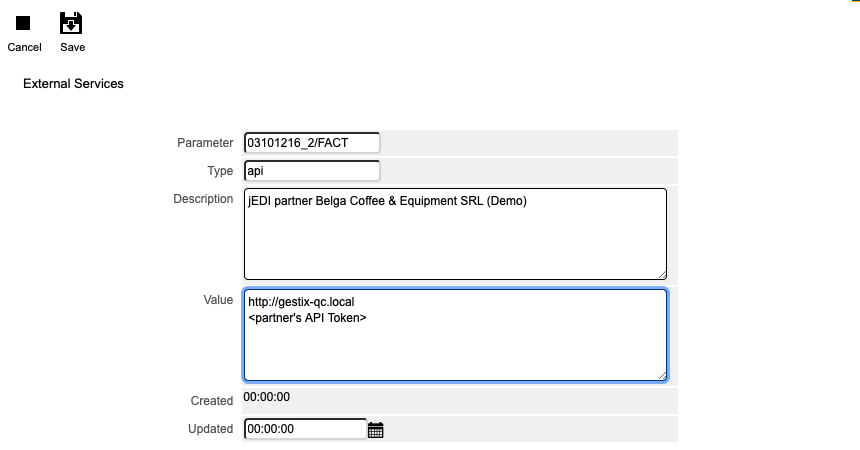
Open Admin › External Services and add a row whose name is exactly the EDI Identifier,
03101052/FATin this example. Its value has two lines:https://<customer's Gestix address> <customer's API Token>The first line can be the server address alone or the full address of the customer's API.
About these screenshots
This example comes from a fictitious tenant in one country. Document names and formats follow that tenant's configuration and tax model; they do not limit how Gestix works in other countries.
In the company that receives invoices
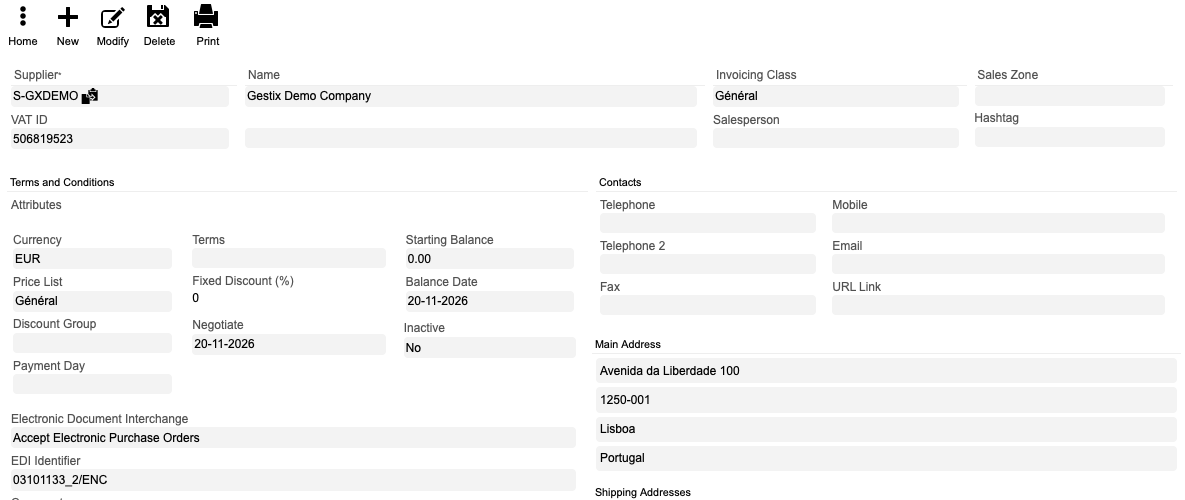
- Open the supplier's record and select Modify.
- In Electronic Document Interchange, choose Accept Electronic Purchase Orders.
- In EDI Identifier, enter the supplier's Gestix ID, a
/and the supplier's sales order series, for examplewestix/ORD. This is where your purchase orders to that supplier arrive. - Check that the VAT ID is the supplier's: it must be the VAT ID the supplier sends. Select Save.
- In Admin › External Services, add the row
westix/ORDwith the supplier's Gestix address and API Token, as above.
Only one supplier, and only one customer, may carry a given partner's Gestix ID in its EDI Identifier. Otherwise the partner's Gestix refuses the documents.
Send a document
- Open the saved document: an invoice or credit memo to the customer, or a purchase order to the supplier.
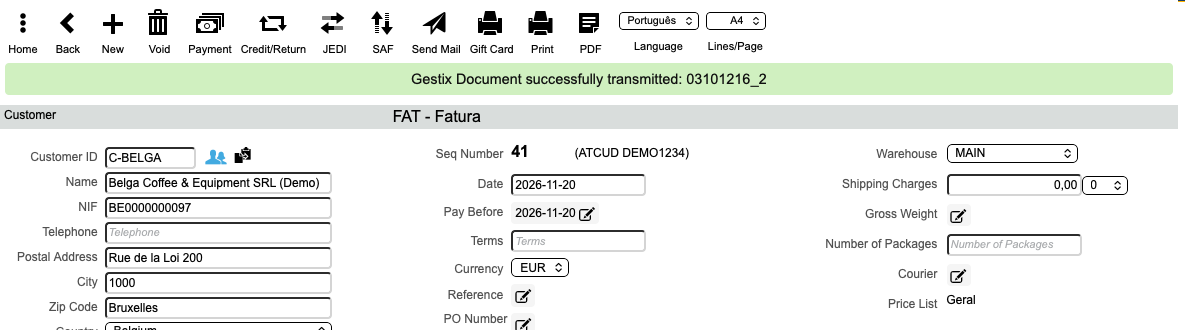
- Select JEDI in the document toolbar. The button is shown only when the partner's record is set up as above.
- Read the message:
- Gestix Document successfully transmitted: the partner has the draft.
- already received (409): the partner already had this document; nothing new was created.
- Document submission failed: see Messages and what to do.
Gestix records each document sent, with the partner's reply, so that sending it again does not create a second draft.
Receive and validate a document
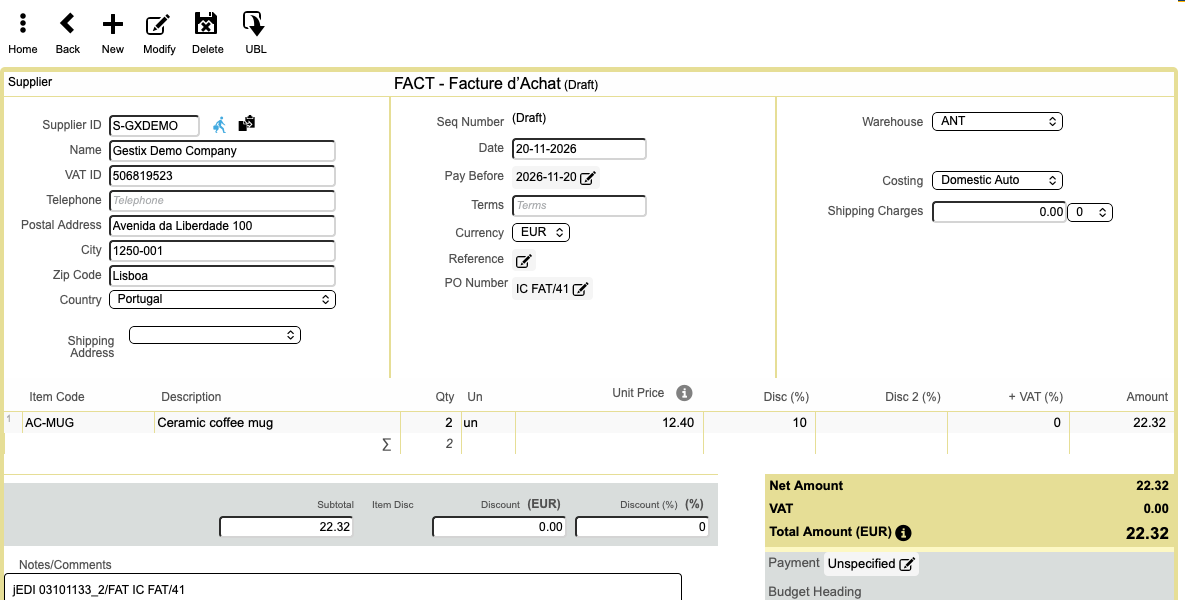
- The document arrives as a draft of the partner, in the Drafts panel of the home page: Purchasing for supplier invoices and credits, Orders for sales orders. Every operator who may see drafts sees it. A draft has no number yet and does not move stock or accounts. It is shown in your own series, with your series names.
- Open it and check the lines and articles. Check the VAT and totals of a received draft before you save it.
- Select Modify, then Save. The document gets its number and is processed as usual. To discard it, select Delete.

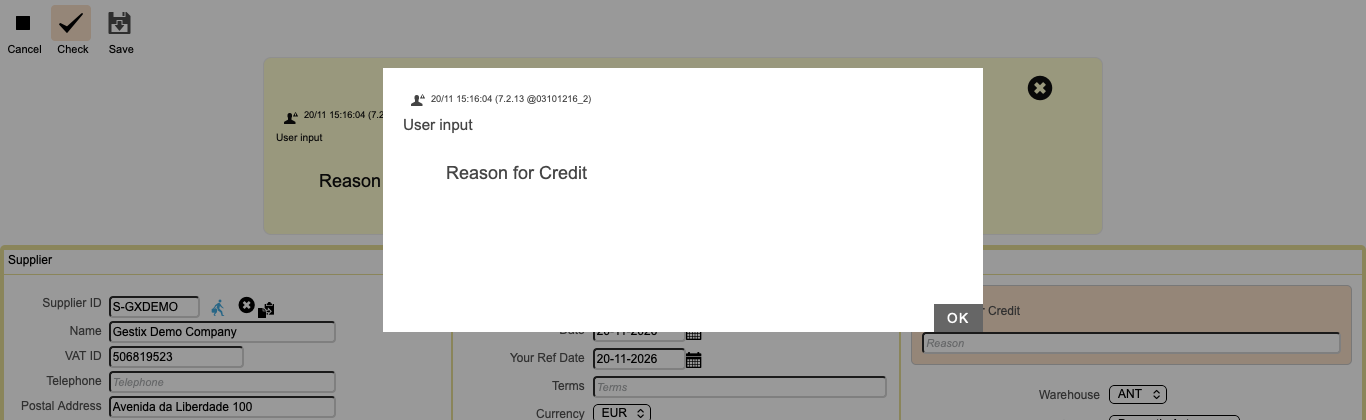
A received credit memo is linked to your copy of the invoice it credits, whether that invoice is already saved or still a draft. When you save it, Gestix asks for your reason for the credit: enter it and select Save again. The sender's reason is not filled in for you.
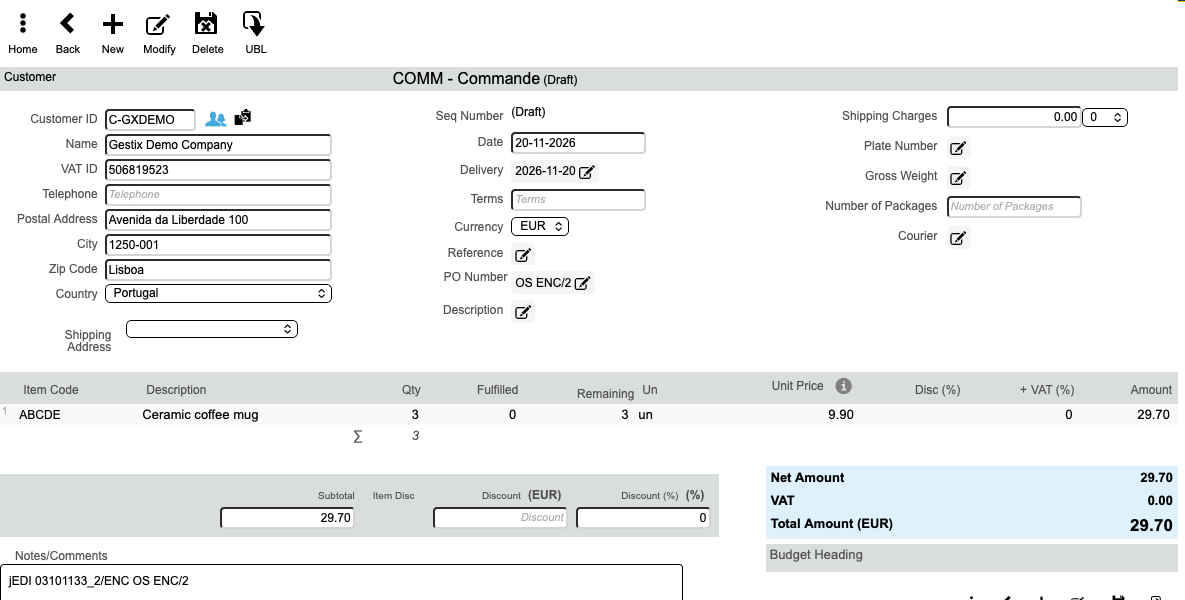
A purchase order arrives the same way, as a draft sales order in the Drafts panel of Orders. Each line carries the code the buyer has recorded as its supplier's code for the article (Supplier's Bar Code in the buyer's article record), when it has one; otherwise the buyer's own article code.
What Gestix does with the data received:
- Partner: always the record set up for the sender's Gestix ID. The names and addresses in the document received are not used.
- Your reference: the sender's document number, for example
IC FA3/6900. The same number from the same partner is received only once. - Reference: the sender's own reference, for example the customer's order number.
- Notes: name the sender's document and, for a credit memo, the invoice it credits, for example
credits IC FA3/6905. - Series: the series named in the EDI Identifier. When the document is of another type (a credit memo sent to an invoice series), Gestix uses its first series of the matching type.
- Articles: in a received invoice, the sender's article code is looked up first in your Supplier Code, then as your article code or barcode. In a received order, the buyer sends its Supplier Code for each article when it has one, that is, your own code.
- Text lines are kept.
Articles you do not have
An article or service code that Gestix cannot match is created as a new article. Fill in the Supplier Codes of your supplier's articles beforehand, or correct the lines before you save the draft.
Messages and what to do
| Message | Cause and fix |
|---|---|
| jEDI: no configuration named … | Add the Admin › External Services row with the exact name of the partner's EDI Identifier. |
| jEDI …: URL (1) / API Token (2) | The External Services row needs both lines: the address and the API Token. |
| EDI Identifier: … (Gestix ID/series) | The partner's EDI Identifier lacks the / and the series. |
| Document submission failed (… /helo/: HTTP 403) | The API Token is wrong or no longer valid. Ask the partner for a new one. |
| Document submission failed (… HTTP 403 … not accepted) | At the partner, no customer or supplier (or more than one) is set up with your Gestix ID. |
| Document submission failed (… VAT ID …) | The VAT IDs on the two sides differ. |
| Document submission failed (… no document series of type …) | The partner has no series of the type needed, for example for credit memos from suppliers. |
| jEDI: not licensed, or the partner is not set to send electronic documents | The licence feature is missing, or the partner's record is not set up for jEDI. |
Limits
- No message announces a received document: check the Drafts list.
- The sender is not told when the partner validates or deletes the draft.
- The PDF of the document is not sent.
- Each pair of partners is set up by hand, on both sides.