Document date and printing settings
Availability
Document date and printing settings: available since Gestix 7.2.02. Settings: Automatic Document Date, Print Counter Value in Base Currency.
Features vary with the edition and configuration you subscribe to: check your licence for the features it includes. Why can't I see a feature?
Admin › Settings holds two settings for the documents your company issues: whether users may change the date and number of a new document, and whether invoices show their total in a second currency.
This page is for administrators.
Automatic Document Date
Automatic Document Date, in the Security part of Admin › Settings, decides by group of documents whether the date and the number of a new document are set by Gestix or can be changed by the user. Where the setting applies, the date and the number are shown as text and cannot be edited.

The Security part of Admin › Settings, with Automatic Document Date set to No.
| Value | Date and number set by Gestix (not editable) |
|---|---|
| No | None: users can change the date and number of every new document |
| Customer Documents | Customer documents, for example invoices |
| Supplier Documents | Supplier documents, for example supplier invoices |
| Warehouse Documents | Warehouse documents, for example stock transfers |
| All Documents | Customer, supplier and warehouse documents |
- In Admin › Settings, choose a value in Automatic Document Date.
- Select Save.
The setting applies to documents created after you save it.
Counter-value in a second currency
When your company has a counter-value currency, a customer document shows its total in that currency too, with the exchange rate. Print Counter Value in Base Currency, in the Sales Documents part of Admin › Settings, decides whether it is also printed.

The Sales Documents part of Admin › Settings, with Printed PDF and Screen.
| Value | Document screen | Print view and PDF |
|---|---|---|
| Printed PDF and Screen | A row under Total Amount | A line below the total |
| Screen Only | A row under Total Amount | Not printed |
About these screenshots
This example comes from a fictitious tenant in one country. Document names and formats follow that tenant's configuration and tax model; they do not limit how Gestix works in other countries.
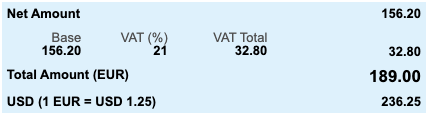
A receipt of 189.00 EUR: the row "USD (1 EUR = USD 1.25) 236.25" under Total Amount.
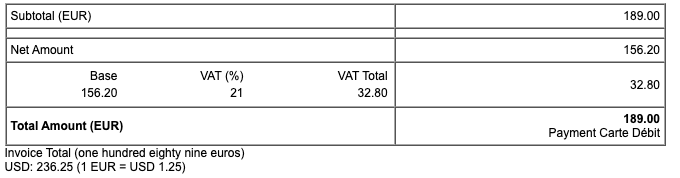
The same document printed with Printed PDF and Screen: "USD: 236.25 (1 EUR = USD 1.25)" below the total.
Without a counter-value currency, no row is shown. A document with a total of zero shows no row. Supplier documents show no counter-value.
Invoice logo, texts and page size
The look of printed invoices is set in Admin › Logo (page title "Invoice logo"): Invoice logo, Text Logo (HTML), Footer Text (HTML) and Default Page Size (PDF), among others. The Invoice Printing part of Admin › Settings links to it: "Invoice logo: Company > Logo".
Print template and logo
On Admin › Logo:
- Print Template is the layout of the printed document: Default, Gestix, Europa, Portugal, America, Crystal, Letter, Elegance, Blue, Light, and Paper Roll and Paper Roll 2 for receipt printers.
- Invoice Logo says what the top of the document shows, and whether the footer text is printed:
| Invoice Logo | Top of the document | Footer Text (HTML) printed |
|---|---|---|
| Text | the Text Logo (HTML) | no |
| Image+Text | the logo image | yes |
| Text+Text | the Text Logo (HTML) | yes |
| Image Logo | the logo image | no |
| Blank, No Logo | no logo | no |
If the footer of your invoices is missing, choose Image+Text or Text+Text. Every print template, Paper Roll included, prints the logo image with Image+Text. - Invoice Logo (60 mm x 32 mm), at the top of the page, is the logo image: select Choose File to replace it. Until a logo image is uploaded, documents print the Gestix logo in its place. A Store with its own logo prints that logo on its documents instead of the company's. - Text Logo (HTML) and Footer Text (HTML) each have a button that fills them from your company details. - Copies per Page, Lines per page (with (Paper Roll) for receipt printers), Top Margin, Image Logo (Width, %), Text Size (Invoices) and Default Page Size (PDF) (A4, US Letter or A5) complete the layout.
The print template, the logo option, the copies and the lines per page belong to each document series. To give the same values to all your customer document series at once, select Update All under Set for all Documents.
Receipt printers (80 mm)
To print on a receipt printer, choose the Paper Roll or Paper Roll 2 template and (Paper Roll) in Lines per page for the series you print there. The Paper Roll templates are offered only for some document types, such as invoices. Tickets printed from the POS always use a paper-roll layout.