Importing data
Availability
Import File (customers, suppliers, articles). Related licence features: Customers Import, Articles Import.
Data Import with an import layout. Related licence features: Customers Update from CSV, CSV Based Stock Update, Invoicing by CSV.
SAF-T import.
Features vary with the edition and configuration you subscribe to: check your licence for the features it includes. Why can't I see a feature?
Gestix can read data from a file in three ways: Import File, Data Import and the SAF-T import. This page says what each one does and which to use.
This page is for administrators.
| Route | Where | File | What it imports |
|---|---|---|---|
| Import File | Customers, Suppliers and Articles | A CSV file with the fixed columns of the example file | New customers or suppliers with their initial balance; new articles with their initial stock, updates of existing articles and inventory corrections |
| Data Import | From the Import File screen, from Families and from documents pages (for example Invoicing, Purchase Orders, Purchasing, Multiple Warehouses), and from Leads | A CSV file with your own columns, read through an import layout that you define | Records of the page it is opened from, for example customers or documents |
| SAF-T import | Admin › Backup | A SAF-T file | Customers, products, sales invoices and payments, into an empty database |
Which route to use
- Your file can follow the example file: use Import File. It is the shortest route for a first list of customers, suppliers or articles.
- Your file comes from another program and has its own columns, or you import documents: use Data Import. You describe the file once in an import layout and reuse it. See Importing data with an import layout.
- You are moving to Gestix from another program that exports a SAF-T file: use the SAF-T import, on a new, empty database.
Import File
Import File reads a CSV file whose columns are those of the example file of each list.
- Open Customers, Suppliers or Articles, then select Import File.
- Select Example to download the example file (for customers,
contacts-example.csv; for articles,Articles-Example-v2.csv). Keep its first line, with the column names, and put one record on each line below it. - Under Data File (Text/CSV), choose your file. For articles, also choose the Warehouse.
- Select Next. Gestix shows the Expected Fields and the Header Found in your file, and the records it read. Check that both rows of column names match before you continue.
- Select Next to import ("Press Next to import 1 Customers").
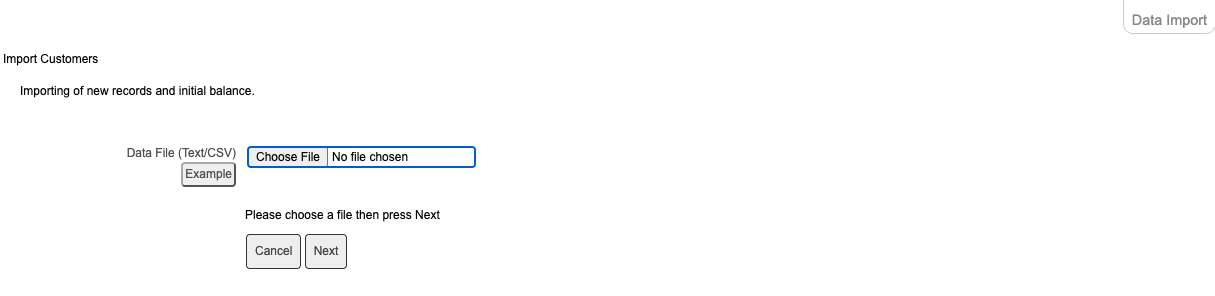
Customers › Import File: the file, the Example button, and Data Import at the top right.
For articles and services, see also Importing a list of articles or services.
Data Import
Data Import reads files with any columns. An import layout says how the file is written (separator, header line, date format, decimal point) and which Gestix field each column fills. You test the file with the layout, then import it. See Importing data with an import layout.
For documents, see also Document import: what is refused and System Log: what a document import leaves.
SAF-T import
Open Admin › Backup. On a database that already holds data, the screen offers Check SAFT, which checks a SAF-T file without importing it. The import itself is offered only on an empty database, and loads customers, products, sales invoices with their lines, and payments. It does not load suppliers, movements of goods or work documents.