Attaching files to a CRM task
Availability
Related licence features: CRM Document Management.
Features vary with the edition and configuration you subscribe to: check your licence for the features it includes. Why can't I see a feature?
Keep files with a customer's or supplier's task: a quote, a screenshot, a signed form. Each task lists its files, and anyone who may see the task can open them.
Open the task
Attachments belong to a saved task. Open it in either place:
- CRM › Tasks: choose Customers or Suppliers, then open the task. Its title reads "CRM - Task" and the task number, for a customer's and a supplier's task alike.
- The customer's or supplier's record: open the record, choose Tasks at the top of the record, then open the task. The page is titled with the record's name, for example "DOC12 Test Customer - Customer Tasks" or "DOC12 Test Supplier - Tasks".
A new task must be saved before you can attach files to it.
The task form in the record
From Gestix 7.2.09, the task form of a customer's or supplier's record (new, modify, details and delete) shows the same fields as the task form of CRM › Tasks. Saving a task there keeps the values of the fields the form does not show. To bring back the full form, with every field of the task, set the parameter usr_task_fulldetails to 1 in Admin › Parameters.
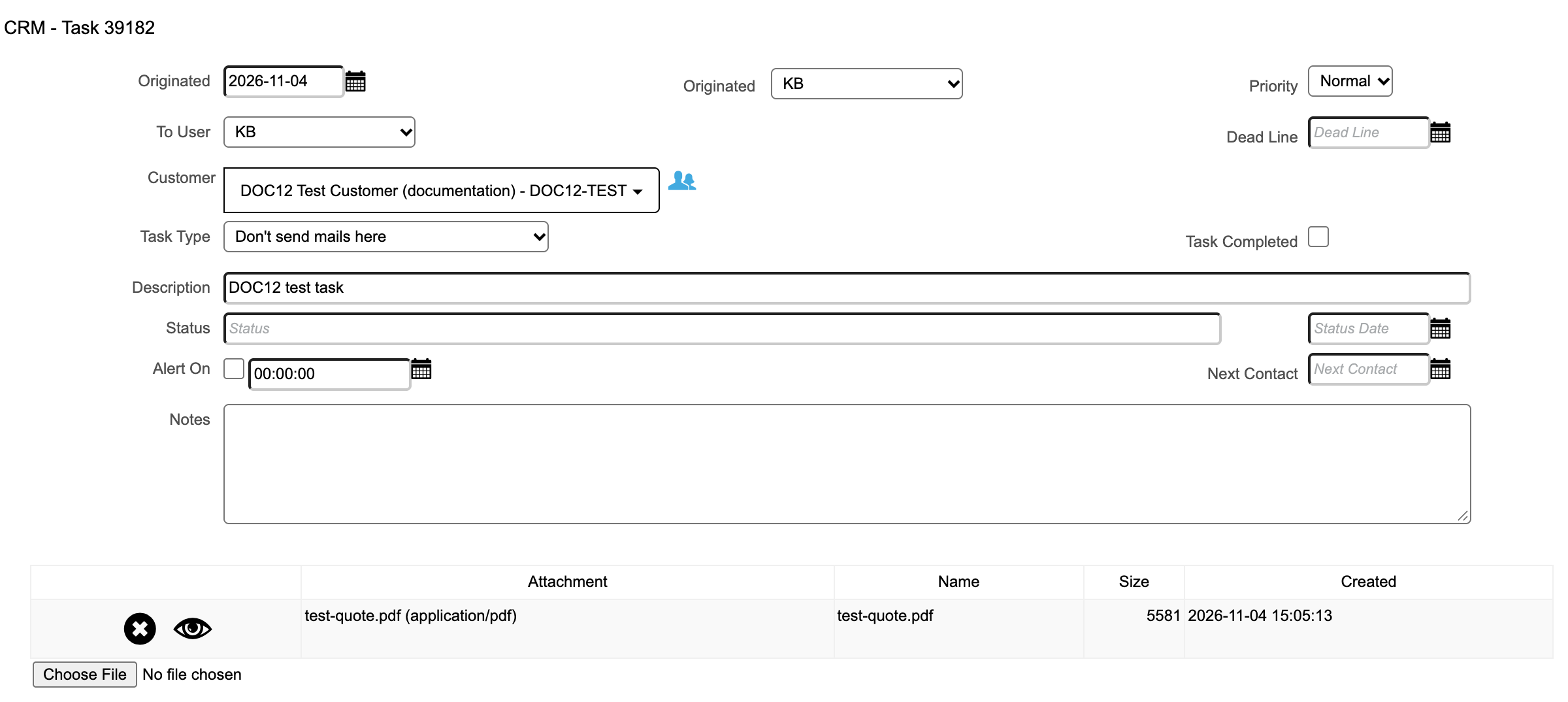
Task 39182 of the test customer DOC12-TEST: test-quote.pdf is attached; Choose File adds another.
The same list and file field appear at the bottom of the task when you open it from the record:


Add a file
- Select Choose File and choose the file.
- The file is uploaded at once and appears in the list: the Attachment column shows its name and type (for example "test-quote.pdf (application/pdf)"), followed by its Name, Size and the date it was Created.
Add one file at a time. A file with the same name as one already attached to the task is refused: "test-quote.pdf Already registered".
Accepted files: images, text, CSV, spreadsheets (ODS, XLSX, Numbers), PDF and ZIP. Other types are refused, for example "Invalid file type: test-tool.exe (application/x-msdownload)."
Open or remove a file
- Open: select the eye icon next to the file. Your browser opens or downloads it under its original name, for example test-quote.pdf; spaces and other special characters in the name become "_".
- Remove: select the remove icon and confirm ("Delete test-quote.pdf (application/pdf)"). The file is deleted.
If you cannot add or remove files
Adding a file needs the permission to add records in Tasks; removing one needs the permission to delete them. Ask your Gestix administrator.