For managers — Preparing articles for the POS
The POS shows two groups of buttons: the families, and the articles of the family the cashier chooses. This page shows how to prepare a family and its articles in the back office so that they appear there.
Availability
Related licence features: Point of Sales.
Features vary with the edition and configuration you subscribe to: check your licence for the features it includes. Why can't I see a feature?
How the POS shows families and articles
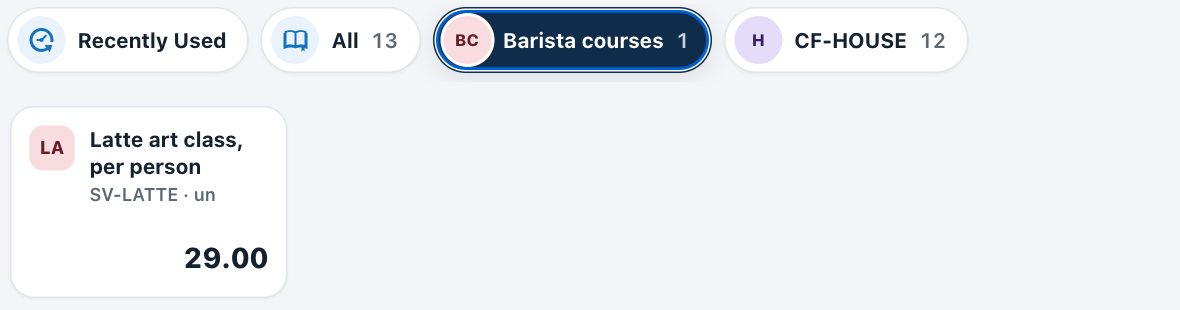
The "Barista courses" family is selected; its one article is shown as a tile.
- Family buttons: Recently Used and All come first, then one button for each family, in alphabetical order of the Family Title. All and each family button show how many articles the cashier can browse there.
- Article tiles: tapping a family shows its articles as tiles, in alphabetical order of the Description. Each tile shows the description, the Item Code, the Unit of Measurement and the price. The price is shown when it is above zero.
- Colour and initials: Gestix gives each family its own colour and shows the initials of the family title or the article description. There is no colour or image to set.
Preparing a family
A family button appears on the POS only when at least one of its articles is on the POS.
You can also create a family while you prepare an article: see Creating a family from the article.
- In Products › Families, select + beside Families. The page "New Family" opens.
- Type the Family Code, for example
COURSES, and the Family Title, for exampleBarista courses. The title is the text of the family button. - Check that Visibility is POS (or POS + Online Store) and that Status is Normal. These are the values a new family gets.
- Select Save.
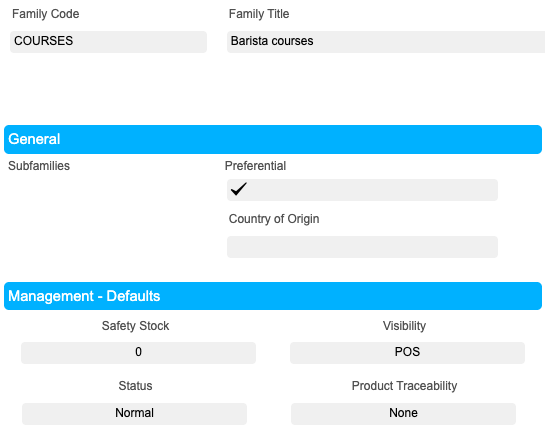
The family "Barista courses", visible on the POS.
Preparing an article
- In Products › Articles, select + beside Articles. The page "New Article" opens.
- Type the Item Code and the Description. The description is the text of the tile.
- In Article Type, choose Article for an article with stock management, or Service for one without.
- In Family, choose the family whose button lists the article. If it does not exist yet, create it with New Family: see Creating a family from the article.
- Check that Visibility is POS (or POS + Online Store) and that Status is Normal. These are the values a new article gets.
- Type the Unit of Measurement and choose the Sales Tax (%). In the price list row, type the Unit Price and tick VAT Inclusive if the price includes VAT. Optional: type the Bar code, so that cashiers can scan it.
- Select Save.
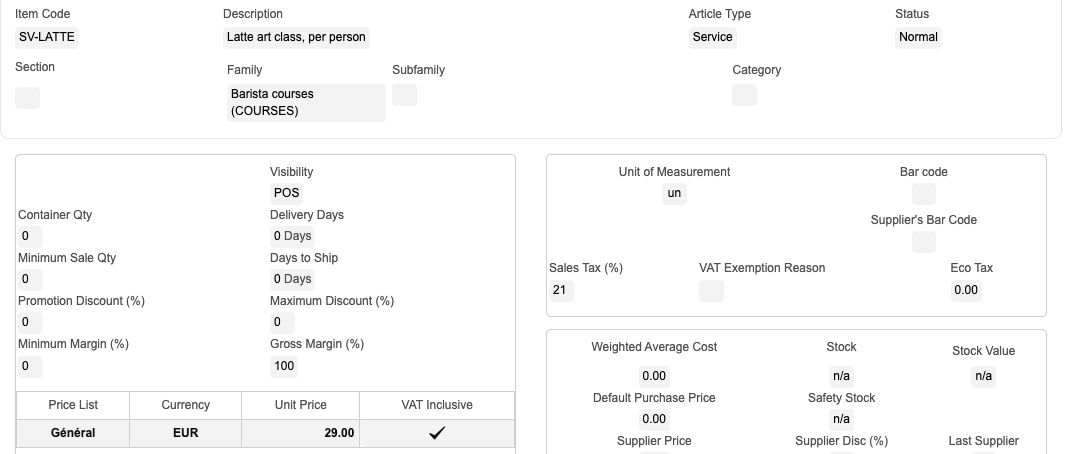
SV-LATTE, a service in the family "Barista courses": Article Type Service, Visibility POS, unit price 29.00 VAT inclusive.
Creating a family from the article
If the family does not exist yet, create it without leaving the article:
-
Below Family, select New Family.
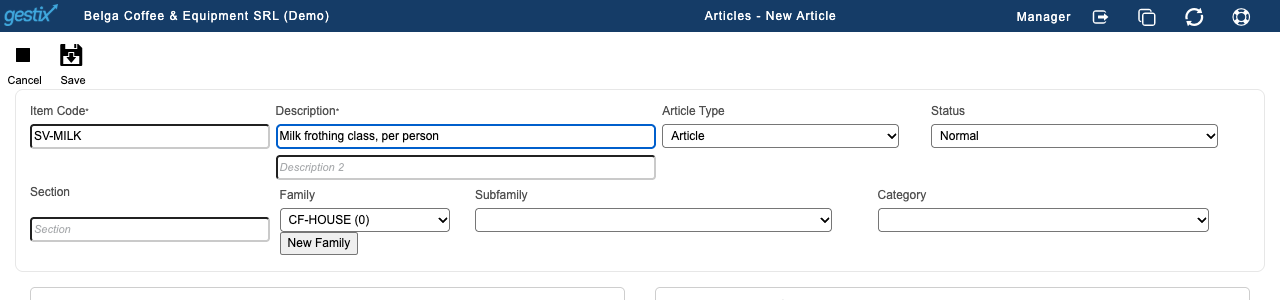
-
Type the family title, for example
Barista workshops, then select OK. To close the box without creating a family, select Cancel.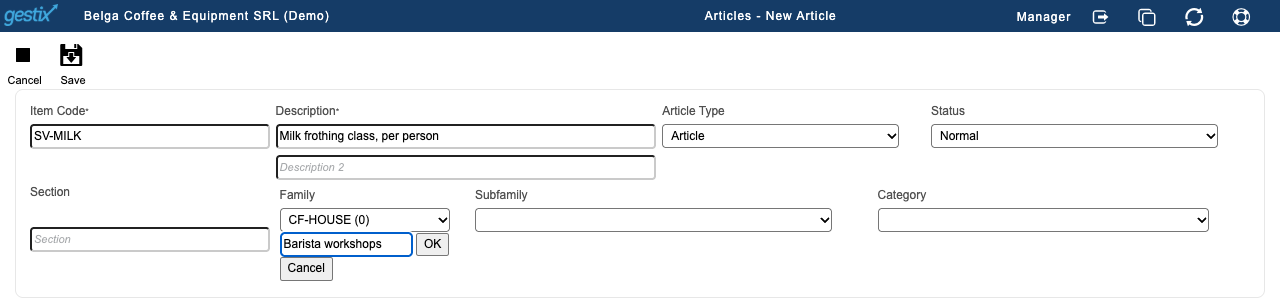
-
The family is created and chosen in Family. What you typed in the article stays as it was.
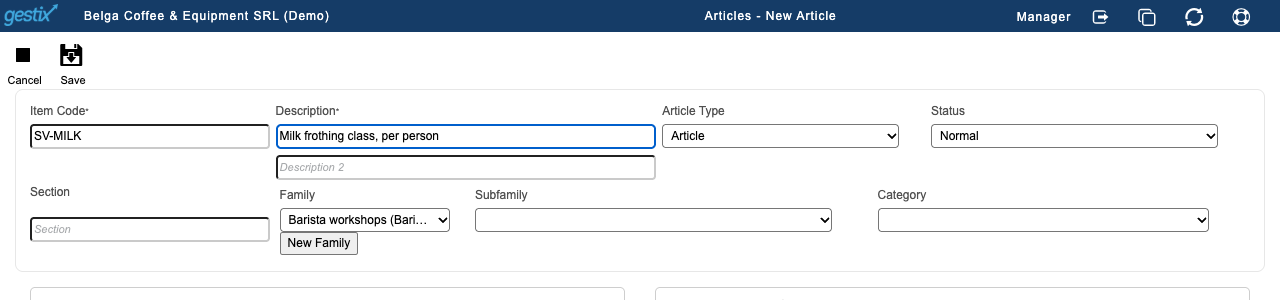
"Barista workshops" is chosen in Family; the Item Code and Description are kept.
-
The family code is made from the title; if that code already exists, a number is added to it.
- The family gets the article's Sales Tax (%), or your company's default rate when the article has none, and has no subfamilies.
- The family is kept even if you then cancel the article. To change its code or other fields, open it in Products › Families.
- You see New Family only when you may create families and the article form is open for editing.
Articles with and without stock
Both types are prepared in the same way. The difference is at the POS:
- Service: has no stock, and its tile is always shown.
- Article: has stock management. If your company does not allow negative inventory, an article with no stock in the Store's warehouse is not shown as a tile, and a family whose articles all have no stock has no button. Cashiers can still find the article by searching. See When an article is out of stock.
If a family or an article is not on the POS
| Check | What to do |
|---|---|
| Visibility is Internal or Online Store | Choose POS or POS + Online Store |
| Status is Inactive | Choose Normal |
| The family has no article on the POS | Add an article to the family, or check its articles' Visibility, Status and stock |
| The article has no stock in the Store (stock articles only) | See When an article is out of stock |
Note
Each till keeps its list of families and articles for the day. If a till was already open when you saved, the new family or article appears there the next day. To show it at once, tap the operator button at the till, then Reload items.