Quantities and editing the ticket
Change the quantity of a line, sell by weight, change a price or give a discount, remove a line, put a ticket aside, or discard the whole ticket.
Selecting a line
Tap a line to select it. The selected line is highlighted and shows its actions: Unit Price, Discount %, Discount €, Qty and Delete. A newly added line is already selected.
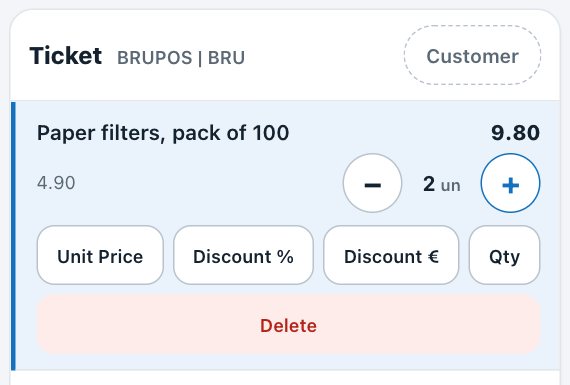
Paper filters at quantity 2, with the line's actions.
Changing a quantity
- Tap + to add one.
- Tap − to remove one. At quantity 1, − asks whether to delete the line.
If your company does not allow negative inventory, the ticket cannot hold more of an article than your Store has in stock: a larger quantity is refused with a "Short item stock" message.
Selling by weight
- Add the article, for example CF-BULK, sold by the kg.
- On its line, tap Qty. The search field shows a scale icon.
- Type the weight, for example
0.75, and press Enter.
The line shows the weight and the price for that weight, for example "0.75 kg", 16.50. Weights have two decimals.

After Qty, the search field waits for the weight.
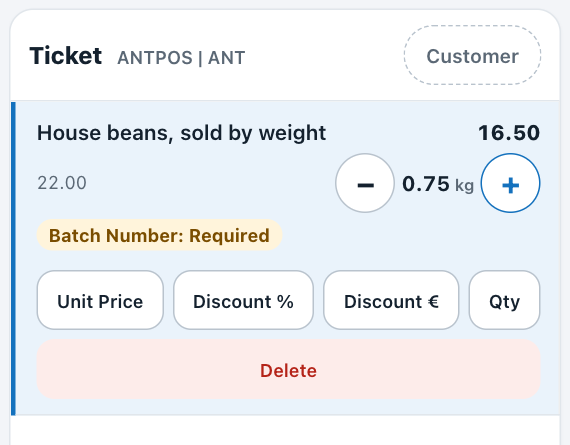
The line at 0.75 kg. It still needs its batch number.
Changing the price or giving a discount
Use these only when your Store allows it.
- Select the line.
- Tap Unit Price, Discount % or Discount €. The search field shows an icon for that action.
- Type the new unit price, the percentage or the amount, and press Enter.
The line shows the original price with the discount, and the new amount. To leave without changing anything, tap the same button again.

After Discount %, the search field waits for the percentage.
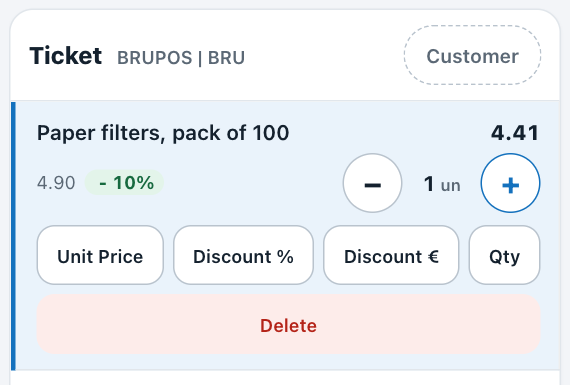
Paper filters with 10% off: "4.90 - 10%", now 4.41.
Entering 0 does not remove a discount or reset the price. To remove a discount, delete the line and add the article again.
Limits set on the article
Maximum Discount: if the article has one, a larger discount percentage is refused.
Minimum Margin: if the article has one and the company uses Minimum Margin Control, a price that leaves too little margin is refused or shows a warning, depending on that setting.
Removing a line
- Select the line.
- Tap Delete.
- Confirm with OK. Cancel keeps the line.
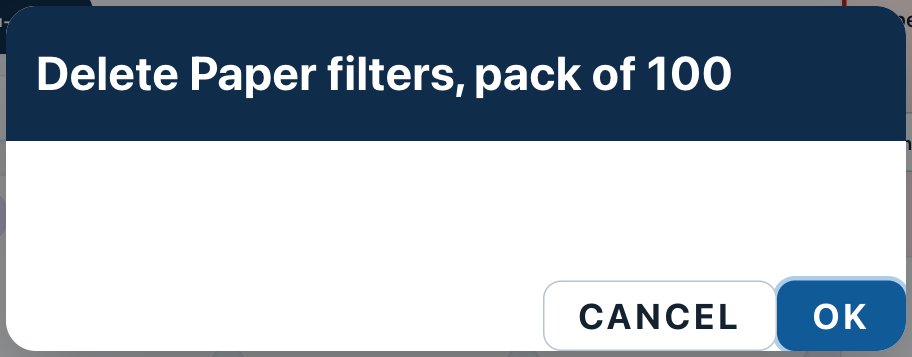
Putting a ticket aside
Tap Save as Draft, below the ticket. The ticket is cleared, and the saved ticket is listed under Drafts in the side rail, where you can open it again.
Discarding the whole ticket
- Tap Cancel, below the ticket.
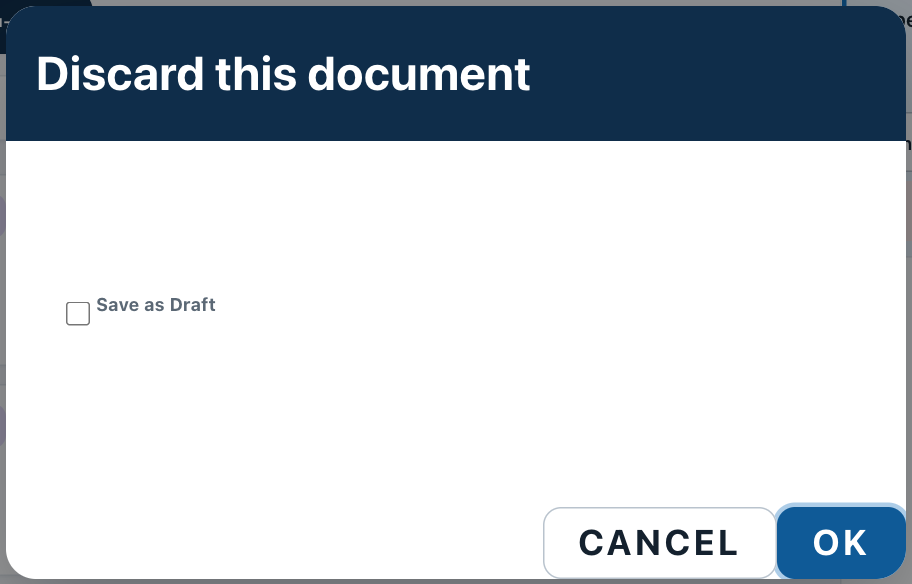
- In "Discard this document", leave Save as Draft unticked.
- Tap OK. The ticket is cleared. Nothing is sold and stock does not change.
Cancel and Save as Draft are below the ticket, above the payment buttons (see Cash and card payments).