Finding and adding articles
Add an article to the ticket by tapping its tile, or by scanning or typing its code.
Tapping a tile
- Choose a group above the tiles: Recently Used, All, or a family.
- Tap the article's tile. It is added to the ticket as a new line.
Each tile shows the description, the article code, the unit (for example "un" or "kg") and the price.
Note
If your company does not allow negative inventory, articles with no stock in your Store are not shown as tiles. Services are always shown. See When an article is out of stock.
Scanning or typing a code
- Scan the barcode, or tap the Search Item / Bar code field and type the article code or barcode.
- Press Enter if you typed it. The article is added to the ticket.
Typing part of a description filters the tiles, so you can tap the article you want. Articles with no stock in your Store can still be found this way; what happens next depends on your company's stock setting (see When an article is out of stock).
Articles with a lot (batch) number
Some articles, such as coffee sold by weight, are tracked by lot.
- Add the article. The line shows "Batch Number: Required", and the search field shows "Batch Number".
- Scan or type the lot number in the search field and press Enter.
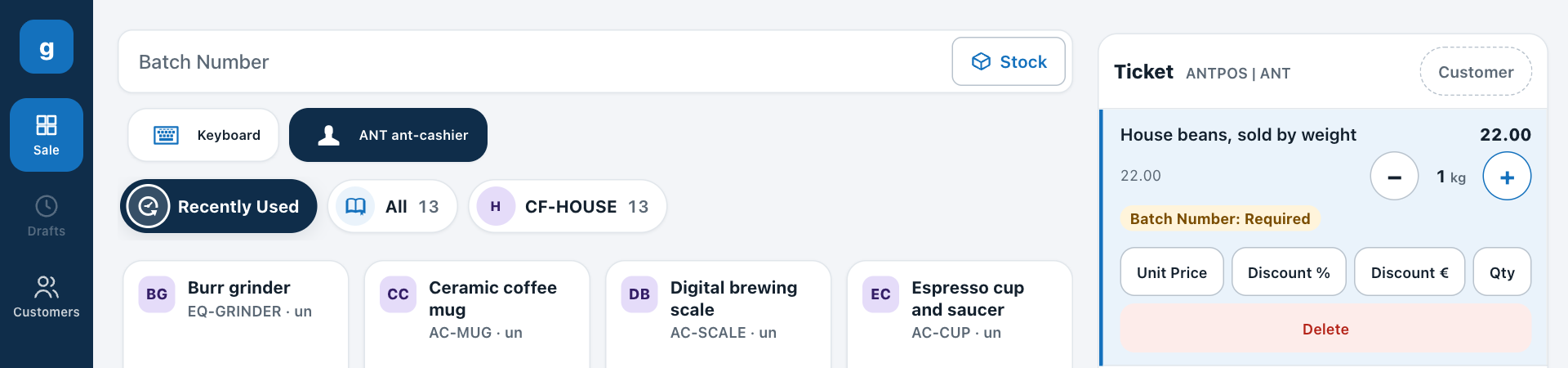
CF-BULK added at Antwerp: the line waits for its batch number.
Articles with a serial number
Equipment such as a grinder is tracked by serial number.
- Add the article. The line shows "Serial Number 0/1", and the search field shows "Enter Serial Number".
- Scan or type the serial number in the search field and press Enter. The line shows the number, for example "Serial Number 1/1: BCE-GRD-0002".
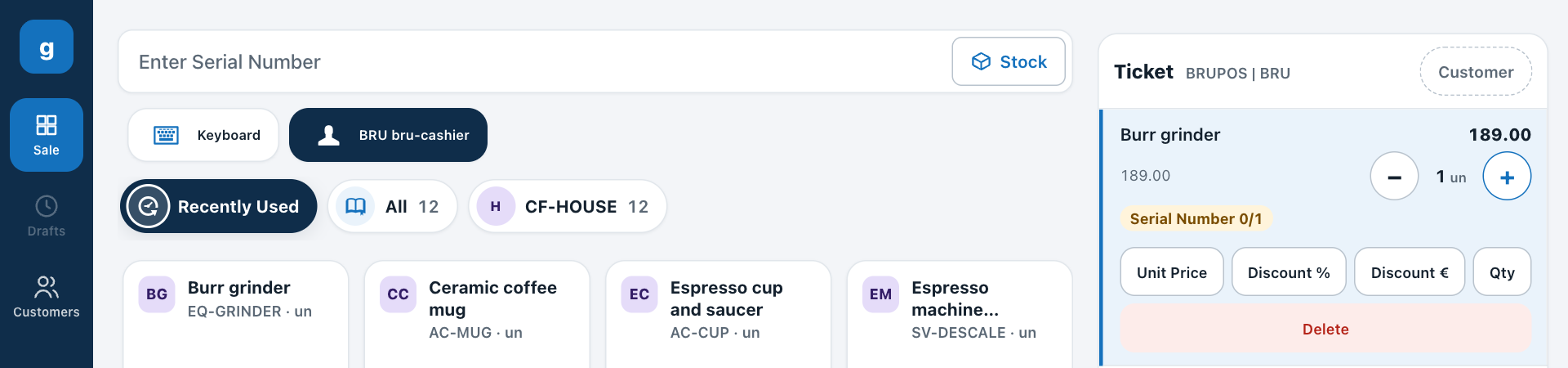
A burr grinder waiting for its serial number.
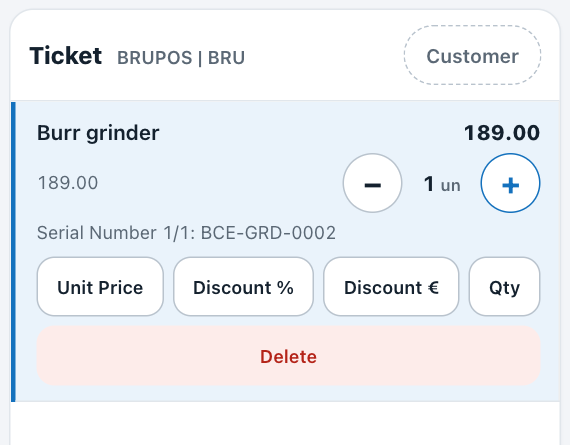
The same line after the serial number was scanned.
Warning
You cannot complete the payment while a line still needs its lot or serial number.