Checking stock in other Stores
Use Stock to see how many units of an article are available in your Store, in the other Stores and in other locations such as the Central Warehouse.
Looking up stock
There are two ways. Tap OK (or press Esc) to close the Stock sheet.
Search first
- In the Search Item / Bar code field, type an article code, barcode or description. Do not press Enter.
- Tap Stock.
- Read the availability in the Stock sheet.
A description can match several articles: the sheet then lists up to 20 of them. If there are more, it says "Refine the search to see more items".
Stock first
- Tap Stock. The button is highlighted and the search field shows "Scan or tap an item".
- Scan an article, type its code and press Enter, or tap an article tile.
- Read the availability in the Stock sheet.
Stock mode ends after one lookup. To cancel it before then, tap Stock again or press Esc.
Reading the Stock sheet
| Row or group | What it shows |
|---|---|
| Here | Your Store. Always shown; at 0 it is marked "Out of stock" |
| STORES | Other Stores that have the article |
| OTHER LOCATIONS | Warehouses that are not Stores, such as the Central Warehouse, when they have the article |
| Total | The sum of the rows shown |
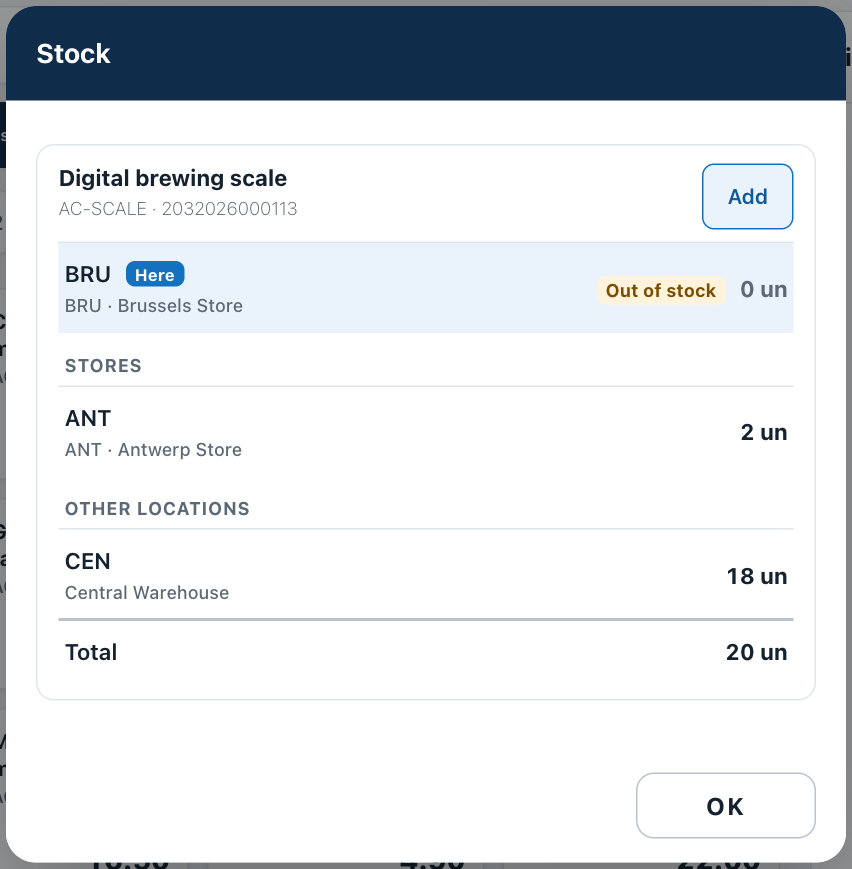
At Brussels: none here, 2 at Antwerp, 18 at the Central Warehouse, 20 in total.
Here follows the workstation. The same kind of lookup at Antwerp shows Antwerp as Here.
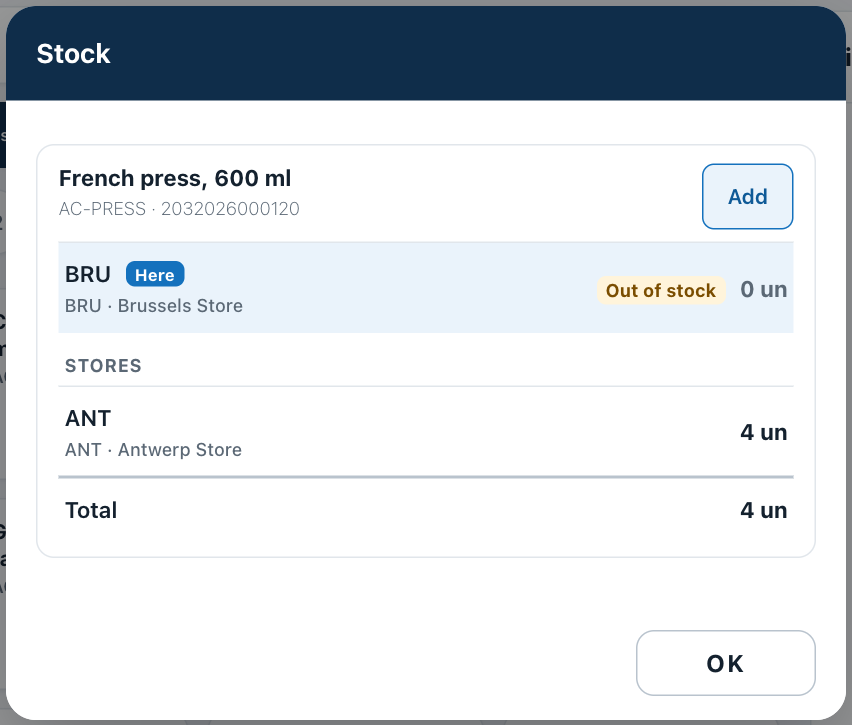
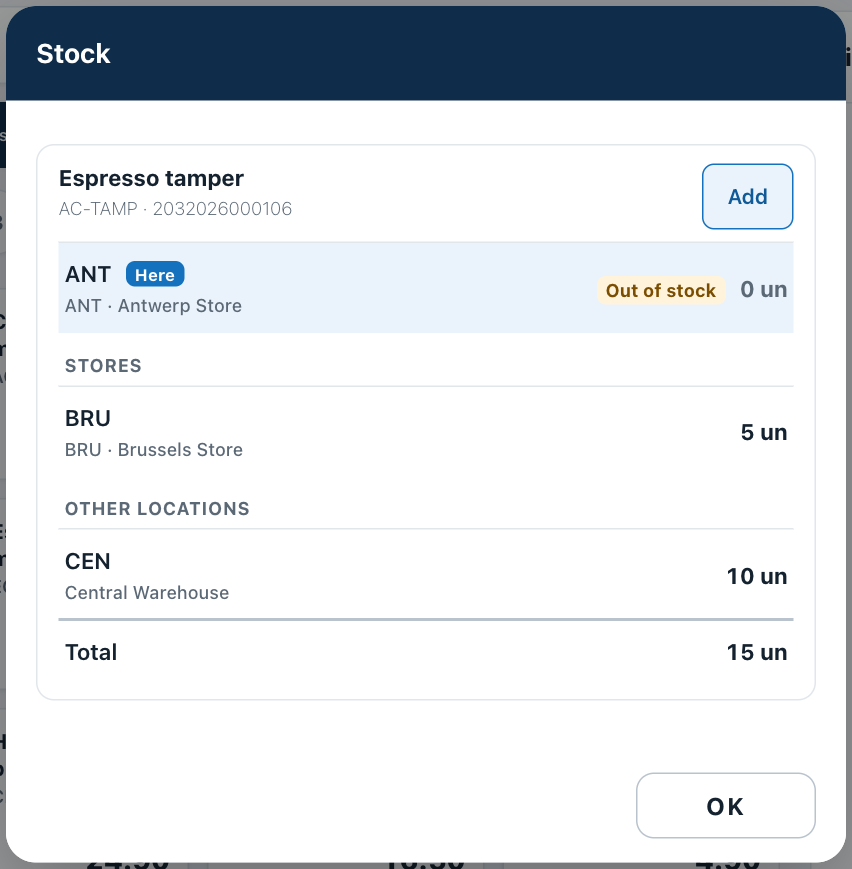
Left: at Brussels, an article available only at another Store. Right: the same kind of lookup at Antwerp.
Adding the article from the Stock sheet
Tap Add next to an article to put it on the ticket. It follows the normal sales rules, as if you had scanned it: for example a lot or serial number may be required, and the stock setting applies (see When an article is out of stock). A discontinued article shows "Discontinued" instead of Add.
Looking up stock changes nothing.