When an article is out of stock
What the POS does with an article that has no stock in your Store depends on the company setting Allow Negative Inventory on Sales, which your administrator sets under Admin › Settings. Ask your manager which applies at your Store. The examples in this guide come from a company that does not allow negative inventory.
When negative inventory is not allowed
- Browsing: articles with no stock in your Store are not shown as tiles. Services are always shown.
- Searching: typing part of a description or code can still find them. They appear as tiles marked "Out of stock". Tapping one opens the Stock sheet instead of adding the article.
- Scanning or typing the code: the article is not added. A message below the ticket names the article and your Store's warehouse, for example "Out of stock: Digital brewing scale (AC-SCALE) - Warehouse BRU."
- Quantities: the ticket cannot hold more of an article than your Store has in stock. A larger quantity is refused with a "Short item stock" message.
- Stock lookup: the Stock sheet still shows where else the article is available.
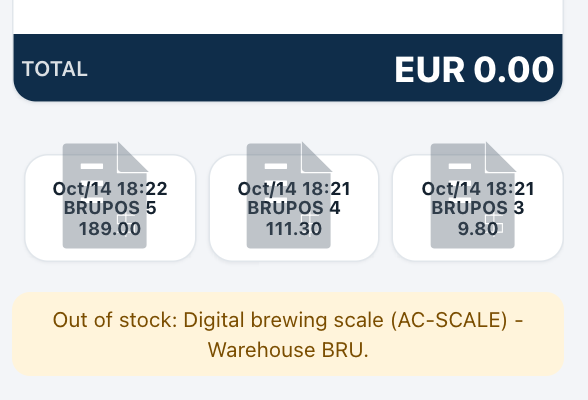
The scale was scanned at Brussels, where there is none in stock: the ticket total stays at EUR 0.00.
When negative inventory is allowed
All articles are shown and can be sold, even if your Store's stock goes below zero. A tile shows the stock when it is zero or less.
Allowing negative inventory removes only the stock-quantity restriction. The article's other restrictions still apply: for example a lot or serial number may be required, and minimum quantities and price or discount limits are still checked.
What to do
- Check whether another Store or location has the article: see Checking stock in other Stores.
- Tell the customer where it is available, and follow your Store's procedure.