Returns
Returns are handled in the back office by an authorised operator, not on the POS screen. If you do not have access, ask your supervisor.
The operator records a Credit/Return from the original sale.
Before you start
- Find the original sale, for example BRUPOS 3: see Finding and reprinting recent sales.
- Agree with the customer what is returned and how the money is paid back.
Recording a return
- In Invoicing, open the original sale.
- In the toolbar, select Credit/Return. A new document opens in your Store's return series, marked "(Not saved)", with Related Doc set to the original sale and its lines copied.
- Check the lines. If only some articles come back, remove or change the other lines with the icons at the start of each line.
- In Reason for Credit, type why the articles are returned. This field is required: the document cannot be saved without it.
- Check Payment of Returns (the amount paid back to the buyer) and choose the Payment, for example Argent (cash) or Carte Débit (debit card).
- Select Check to recalculate the document.
- Select Save, then confirm.

Credit/Return appears in the toolbar only while the sale still has something to return.
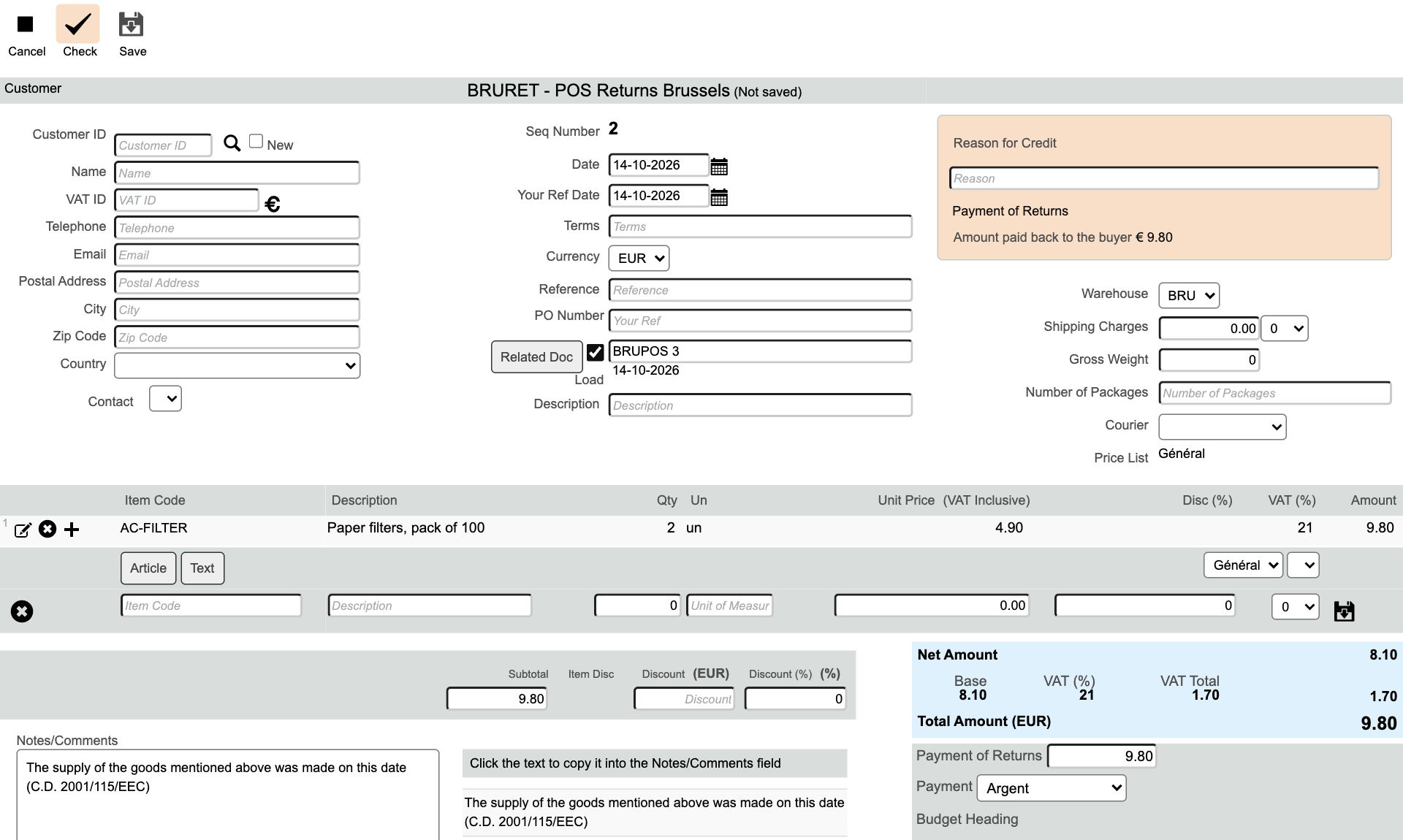
The new Credit/Return: Related Doc, the copied line, Reason for Credit (still empty), Payment of Returns and Payment.
Warning
Save issues a numbered Credit/Return and puts the returned articles back into stock. Until you save, nothing is issued.
The result
The saved Credit/Return shows the original sale (Related Doc and Originating Document), the Reason for Credit, the returned lines and the refund. Once a sale has been fully returned, Credit/Return no longer appears on it.