Getting started
Sign in, open the POS and check that it shows your Store.
Before you start
- Workstation: your browser must already be bound to your Store's workstation. A manager does this once for each browser (see For managers — Stores and workstations).
- Store access: your sign-in works only at the workstations of the Stores your profile allows.
Signing in
- Open Gestix in your workstation's browser.
- In Language, choose "English UK".
- Type your User and Password, then select Login.
- If a "What's new" panel covers the screen, close it.
- In the menu, under Sales, select POS. The POS sale screen opens.
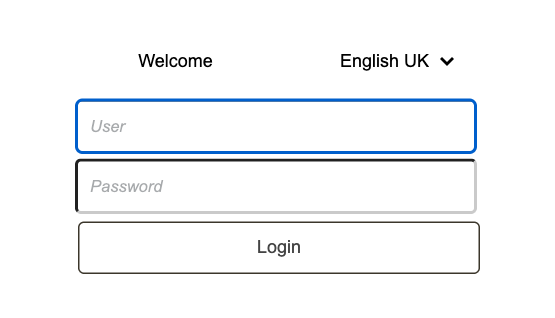
Choose the language each time you sign in.
Checking which Store you are in
The workstation decides the Store, not the cashier. Before your first sale, check the top of the ticket:
- Ticket BRUPOS | BRU: the sales series (BRUPOS) and the Store (BRU).
- Operator button: next to Keyboard, it shows the Store and your login, for example "BRU bru-cashier".
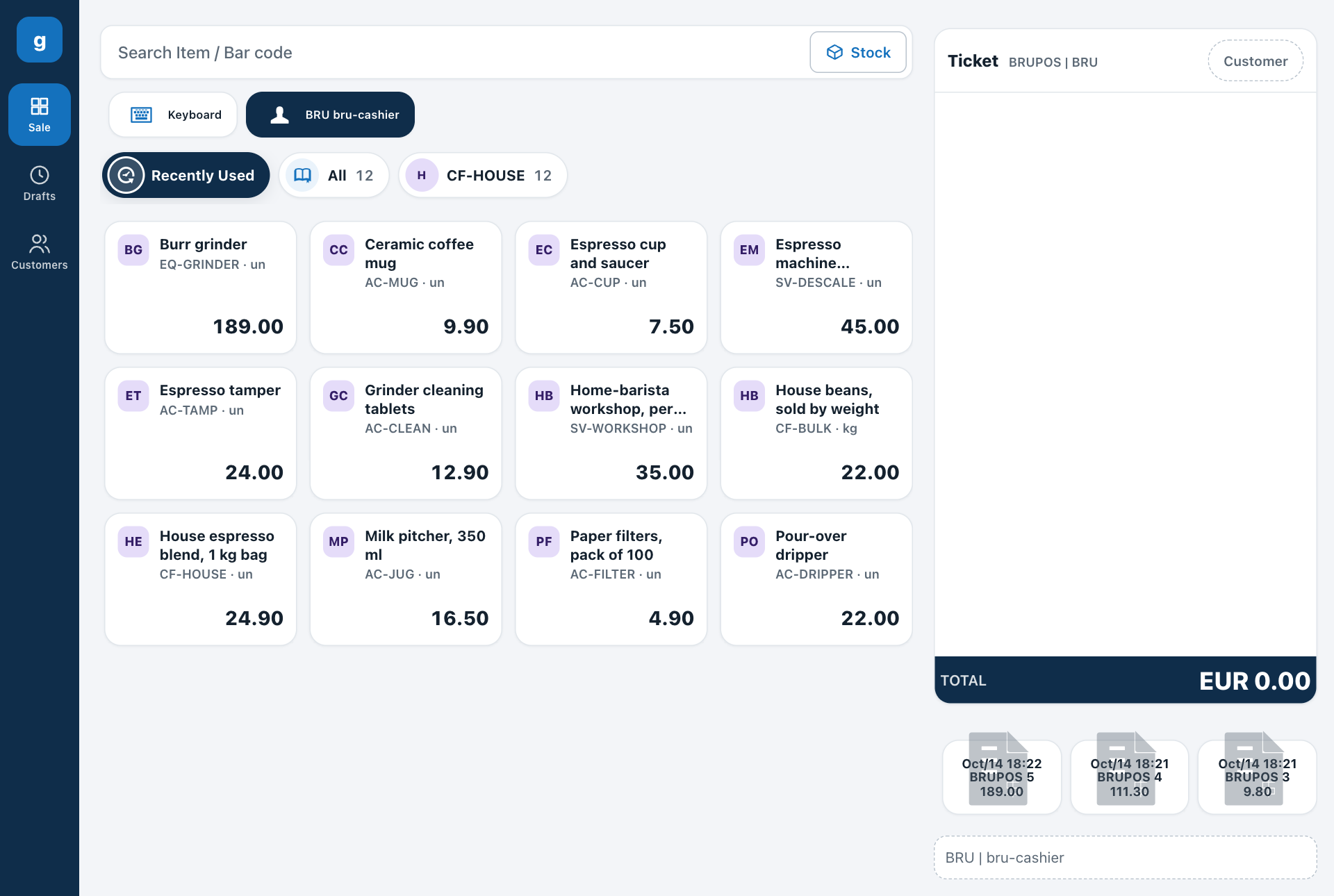
The sale screen: search field and Stock button at the top, article tiles in the middle, the ticket on the right.
A manager who may work in several Stores sees the header change with the workstation:
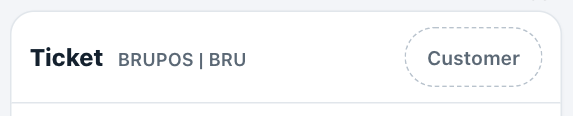
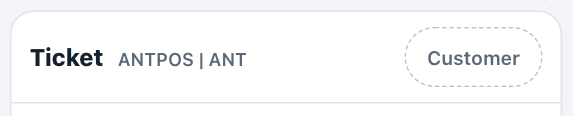
The same manager at the Brussels and Antwerp workstations.
If the POS does not open
| You see | What it means | What to do |
|---|---|---|
| "POS Store configuration" and "ANT (Antwerp): Your privilege profile is not authorised for this Store" | You are at another Store's workstation | Use your own Store's workstation, or ask a manager |
| "POS Store configuration" and "This device is not bound to a POS workstation" | This browser is not bound to a workstation | Ask a manager to bind it |
Both pages have a Log out link.