Selecting a customer
Put a named customer on the ticket, for example when a business needs its VAT number on the invoice.
Sales without a customer
You do not have to select a customer. A ticket with no customer is a final consumer sale.
Selecting a named customer
- In the ticket header, tap Customer. (You can also use Customers in the side rail.) The customer panel opens.
- In the Customer field, type part of the name.
- Tap Search.
- Tap the customer's row.
The customer's name replaces Customer in the ticket header. You can select the customer before or after adding articles.
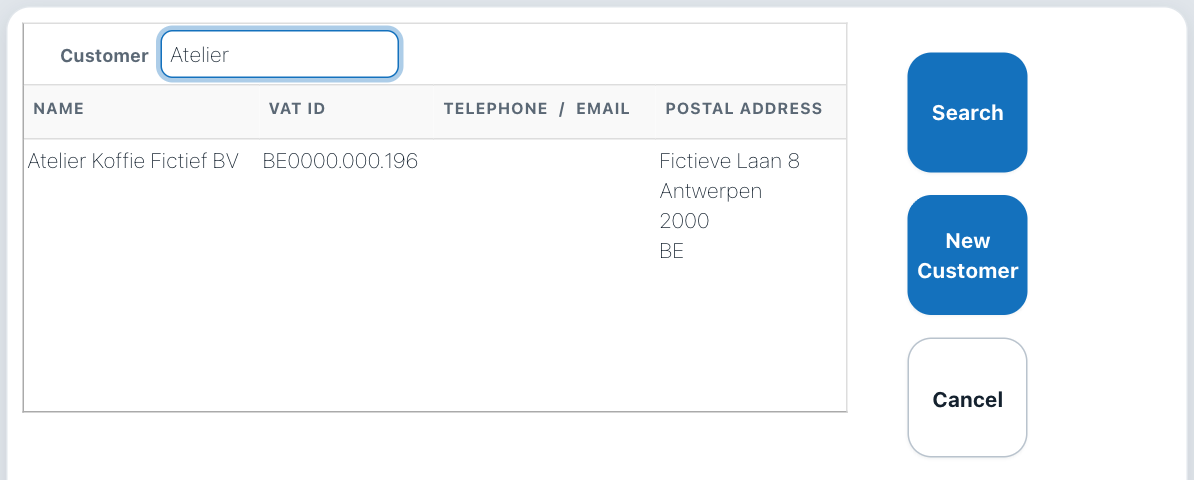
Searching for "Atelier": the list shows name, VAT ID, telephone or email, and postal address.
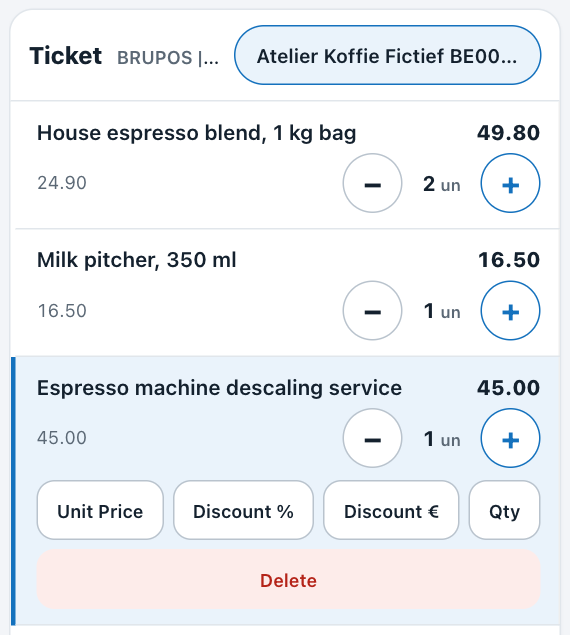
The customer's name in the ticket header.
The ticket footer shows a single VAT total, even when the ticket mixes VAT rates.
Creating a new customer
Search first: the customer may already exist.
- In the customer panel, tap New Customer.
- Type the customer's NAME and the other details you need, such as VAT ID for a business.
- Tap Save to create the customer and put it on the ticket, or Cancel to close the form without creating one.
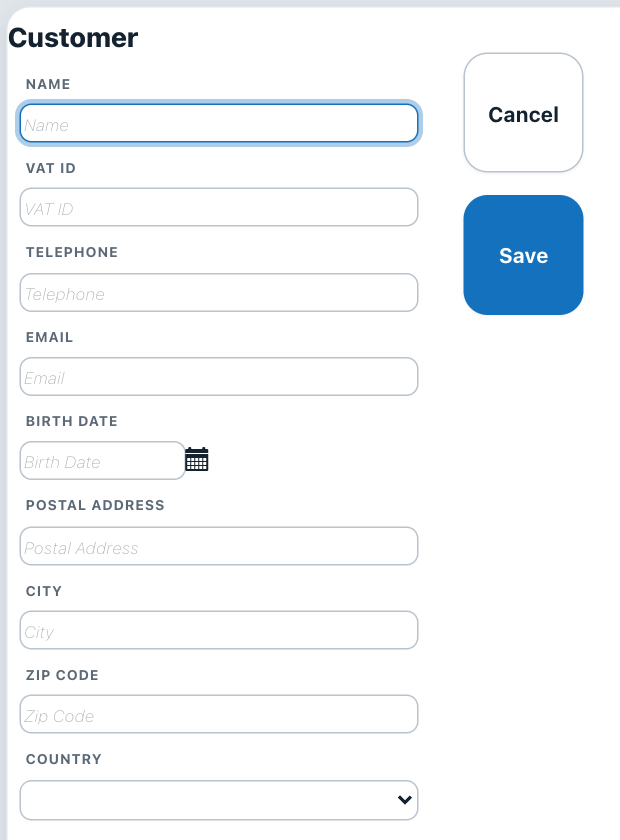
The New Customer form.
Gestix may use an existing customer with matching details instead of creating a new record.