For managers — Stores and workstations
What must be in place before cashiers can use the POS in a Store.
Stores
Admin › Stores lists each Store with its warehouse and its default POS sales and return series. The top of the page shows whether POS Store mode is on, and whether the Store-restricted profiles are synchronised.
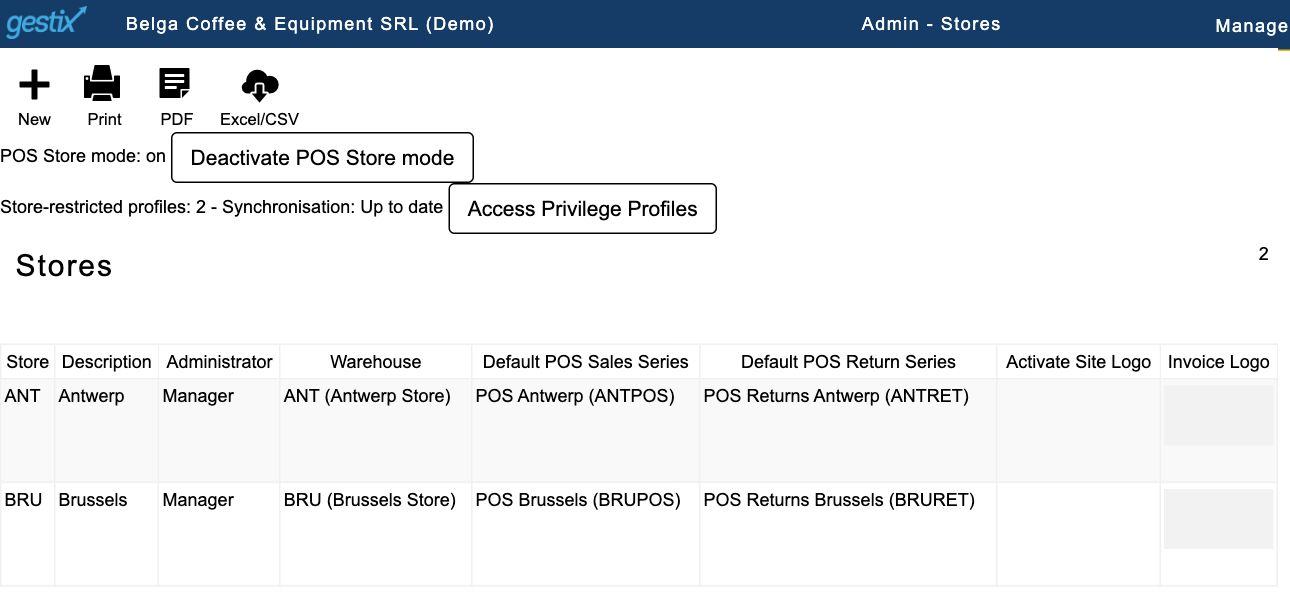
POS Store mode is on; two Store-restricted profiles, "Synchronisation: Up to date".
Workstations
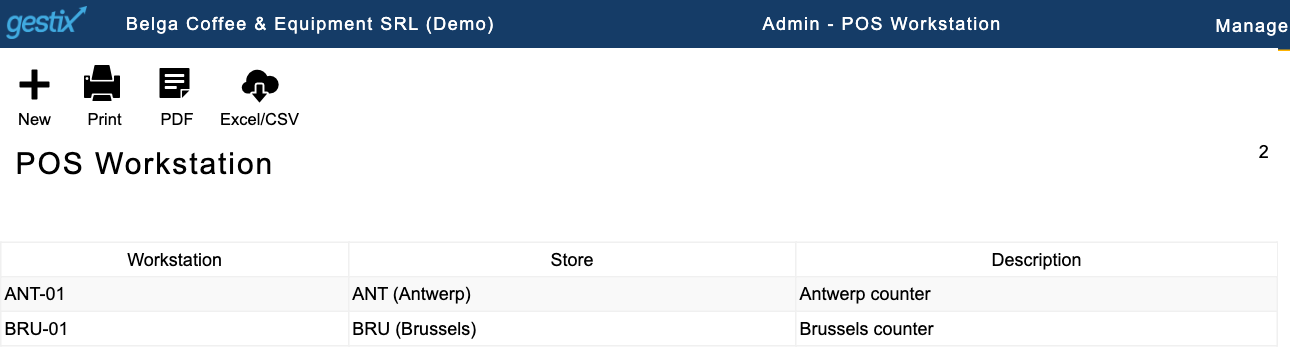
Admin › POS Workstation lists the workstations and their Stores. In the examples, each Store has one workstation.
Binding a browser to a workstation
Each browser used at a counter is bound once to its workstation. Only an administrator can do this; cashiers cannot change the binding.
- In the counter's browser, sign in as an administrator and open POS.
- The page "POS Store configuration" says "This device is not bound to a POS workstation". Under "Bind this device to a POS workstation", select the workstation, for example "BRU Brussels - BRU-01 Brussels counter".
- The POS opens with that Store's ticket header, for example "Ticket BRUPOS | BRU". Log out, so that the cashier can sign in.
The binding stays when users log out and sign in again.
Which Stores an operator may use
Store access is set in the operator's privilege profile, under Admin › Roles/ Privileges. Open the profile and use Store access: tick "Restricted to the Stores below" and tick the Stores. An operator whose profile does not allow a Store is refused at that Store's workstation (see Getting started).
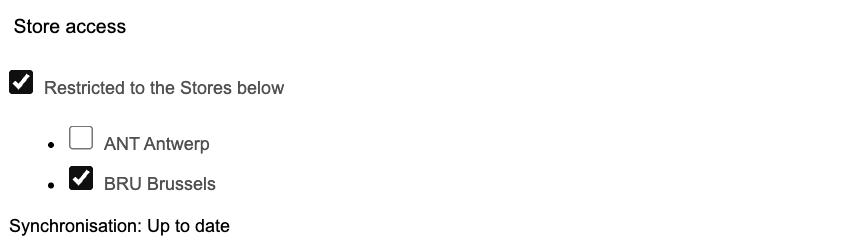
The Brussels Store profile, restricted to BRU.