Applying the rebuild
Apply and confirm
At the end of the preview, select Apply. Gestix asks:
Create and complete these Stores, workstations and profile links? Nothing is deleted.
The question opens in a dialog of your browser, with OK and Cancel. Cancel leaves everything as it was.
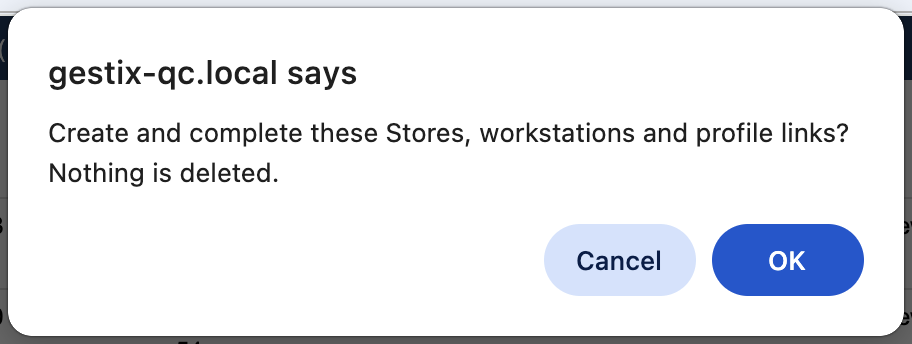
The confirmation is your browser's own dialog (here Google Chrome on macOS): its look, its title and the labels of its buttons depend on the browser and its language.
Confirm. Gestix applies everything in one step: either all of it is applied, or nothing is.
What is created
- the new Stores, and the incomplete Store completed as the shop you chose;
- the link between each Store and its warehouses, virtual warehouses included;
- one POS workstation for each Store that has none;
- each shop profile restricted to its Store;
- POS rights for the shop profiles, only if you ticked the box.
What is never changed
Nothing is deleted. Documents, document series, stock and the series that each profile is denied stay exactly as they were.
The result
The page then shows:
- Store rebuild applied, changes: N, the number of rows created or changed;
- Store-restricted profiles: N - Synchronisation: Up to date.
If an existing Store is still incomplete, it also shows Store mode cannot be activated: the configuration is incomplete.

The result: the number of changes, and the Store-restricted profiles with the synchronisation up to date.
The rebuild line is gone. A second rebuild proposes nothing.
The System Log
The System Log records the rebuild in one entry, with every change: each Store with its warehouse and series, each warehouse link, each workstation, each profile restricted, and each POS right granted.
If it is refused
- "The Store rebuild could not be applied: nothing was changed": nothing was written. Open the preview again, and contact Gestix Technical Support if it happens again.
- More Stores than the licence allows: Apply is refused and nothing is changed.